



最近、C#で外部プログラムのメモ帳[notepad.exe]を起動できなくなってきたので、安定して起動できる方法を調べてみました。
アプリ実行エイリアスのアプリで発生
Windows11にインストールされているテキストエディターのメモ帳[notepad.exe]は以前のバージョンから利用されてきた実行可能アプリと、UWPでインストールされているアプリの2種類があります。
アプリ実行エイリアスは、Windows11の[設定|アプリ|アプリの詳細設定|アプリ実行エイリアス]画面で確認できます。
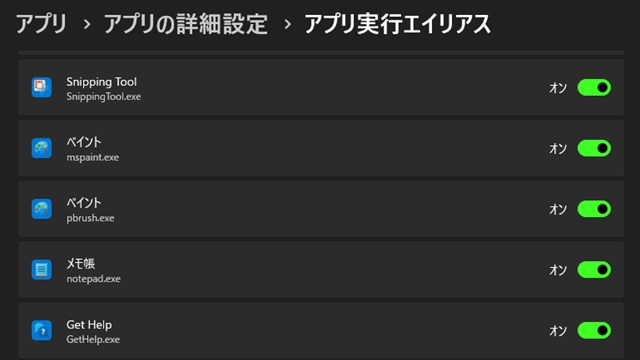
一覧に表示されているアプリは、別名で呼び出されても[アプリ実行エイリアス]に追加されているアプリが起動される仕組みになっています。
例えば、[C:\Windows\System32\notepad.exe]が従来版のメモ帳を起動する場所ですが “notepad.exe” を起動すると[アプリ実行エイリアス]が設定されているめに、UWP版のメモ帳が起動します。
従来版のメモ帳を明示的に起動するには、[C:\Windows\System32\notepad.exe]を直接起動します。
アクセス拒否されました
原因は分かりませんが、次のコードでメモ帳の起動処理で例外が発生する場合があります。
System.Diagnostics.Process.Start(new System.Diagnostics.ProcessStartInfo
{
    FileName = "notepad.exe"
});アクセス拒否に関する、詳しい内容は別記事をご覧ください。
ショートカットを実行して起動する
調べてみると、C#のProcess.Startメソッド以外でも、Win32 APIのShellExecute 関数でもアクセス拒否になるようです。
[アプリ実行エイリアス]に追加されているアプリは、外部プロセスとして起動するハードルは高くなっている状況でした。
試した方法で使えそうなのはショートカットを “ShellExecute” などで実行します。
ショートカットは、シェル経由でアプリを起動するためエクスプローラーでファイルを開いたような動作になるためだと考えられます。
あらかじめ、メモ帳へのショートカットを作成してShellExecute関数の引数に拡張子(.lnk)を使って実行します。
var result = ShellExecute(IntPtr.Zero, "open", @"notepad.exe.lnk", null, null, 1);プログラム的に自動化するのであれば、ショートカットを作成するフォルダーを決めておいて、アプリ実行エイリアスに追加されているプログラムを識別して、ショートカットの作成してから軌道までの流れを組むと手間が省けます。
関連するプロシージャーなどをまとめて1つのクラスにしてみました。
using Microsoft.Win32;
using System;
using System.Collections.Generic;
using System.Diagnostics;
using System.Runtime.InteropServices;
using System.Text;

namespace KeyLayerView
{
    internal class AliasLauncher
    {
        private static readonly string ShortcutDir =
            Path.Combine(AppDomain.CurrentDomain.BaseDirectory, "shortcut");

        public static void Execute(string exe, string args)
        {
            if (IsAliasApp(exe))
            {
                if (!ShortcutExists(exe))
                    CreateShortcut(exe);

                ExecuteShortcut(exe);
            }
            else
            {
                Win32.ShellExecute(IntPtr.Zero, "open", exe, args, null, 1);
            }
        }

        // ----------------------------
        // アプリ実行エイリアスの判定
        // ----------------------------
        private static bool IsAliasApp(string exe)
        {
            try
            {
                string fileName = Path.GetFileName(exe);

                string aliasDir = Path.Combine(
                    Environment.GetFolderPath(Environment.SpecialFolder.LocalApplicationData),
                    @"Microsoft\WindowsApps");

                if (!Directory.Exists(aliasDir))
                    return false;

                string path = Path.Combine(aliasDir, fileName);

                return File.Exists(path);
            }
            catch
            {
                return false;
            }

        }

        // ----------------------------
        // ショートカット確認
        // ----------------------------
        private static bool ShortcutExists(string exe)
        {
            string shortcutPath = GetShortcutPath(exe);
            return File.Exists(shortcutPath);
        }

        // ----------------------------
        // ショートカット作成
        // ----------------------------
        public static bool CreateShortcut(string exe)
        {
            Directory.CreateDirectory(ShortcutDir);

            string shortcutPath = GetShortcutPath(exe);

            Type? t = Type.GetTypeFromProgID("WScript.Shell");
            if (t != null)
            {
                dynamic? shell = Activator.CreateInstance(t);
                if (shell != null)
                {
                    var shortcut = shell.CreateShortcut(shortcutPath);
                    shortcut.TargetPath = exe;
                    shortcut.WorkingDirectory = Environment.CurrentDirectory;
                    shortcut.Save();
                    return true;
                }
            }
            return false;
        }

        // ----------------------------
        // ショートカット実行
        // ----------------------------
        private static void ExecuteShortcut(string exe)
        {
            string shortcutPath = GetShortcutPath(exe);

            Win32.ShellExecute(IntPtr.Zero, "open", shortcutPath, "", null, 1);
        }

        // ----------------------------
        // 内部ユーティリティ
        // ----------------------------
        private static string GetShortcutPath(string exe)
        {
            string fileName = Path.GetFileName(exe);
            return Path.Combine(ShortcutDir, fileName + ".lnk");
        }
    }
}
AliasLauncher.Execute(“notepad.exe”, “”) を実行すると、アプリ実行エイリアスの有無を判定して、アプリの実行パスに[shortcut]フォルダーにショートカットを作成してから起動します。
まとめ
最近、C#で外部プログラムのメモ帳[notepad.exe]を起動できなくなってきたので、安定して起動できる方法を調べてみました。
直接の原因は分かりませんが、今まで動作していたコードでも何かの更新で外部プログラムとしてメモ帳を起動できなくなった可能性があります。
対処法としては、[notepad.exe]へのショートカットを作成して、[notepad.exe.lnk]ファイルを[ShellExecute]関数で開くことでメモ帳を開くことができました。
Visual Studioでメモ帳[notepad.exe]を外部プログラムとして開きたい人の参考になれば幸いです。
スポンサーリンク
最後までご覧いただき、ありがとうございます。