



Unityで、プレイヤーの脚元の状況に応じて足音を再生する手順について備忘録的に投稿します。
足音の音源
まずは再生する[足音]音源が必要になります。
Unityには音源を作成する機能はないので、フリー音源などから再生するためのファイルを作成します。
その際、現代のパソコンの能力では些細なことですが、再生する負荷や容量を低減するのも含めて1歩分の足音を切り出して、無圧縮の形式(.wavなど)にしておきます。
作成したファイルは、Unityのプロジェクトにドラッグしてアセット化しておきます。
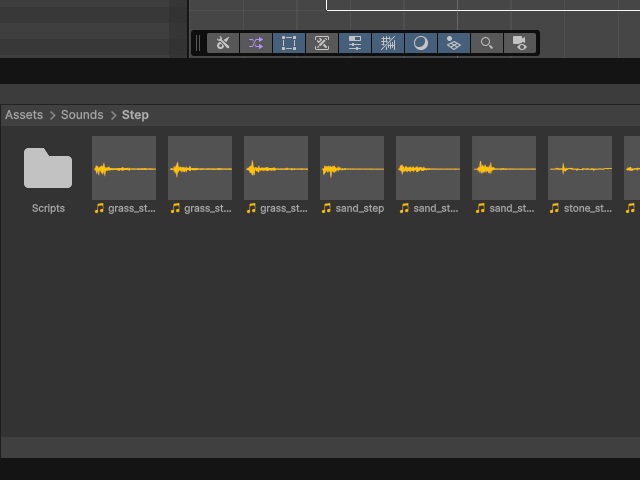
タイル種類による足音の再生
using UnityEngine;
using System.Collections.Generic;

public class PlayerFootsteps : MonoBehaviour
{
    [Header("References")]
    [Tooltip("シーン上のタイル種類を取得する先を指定")]
    public MapGenerator mapGenerator;

    [Header("Audio Clips (それぞれ複数登録可能)")]
    public List<AudioClip> grassStepClips = new List<AudioClip>(); // 草用
    public List<AudioClip> sandStepClips = new List<AudioClip>();  // 土/砂用
    public List<AudioClip> stoneStepClips = new List<AudioClip>(); // 石/岩用
    public List<AudioClip> roadStepClips = new List<AudioClip>();  // 道用

    [Header("Footstep Settings")]
    [Tooltip("足音を鳴らす移動間隔(マス単位。例: 1マス歩くごとに1回鳴らす)")]
    public float stepInterval = 1.0f;

    private AudioSource audioSource;
    private Vector3 lastStepPosition; // 最後に足音が鳴った場所

    void Start()
    {
        // 自身にAudioSourceがなければ自動で追加
        audioSource = GetComponent<AudioSource>();
        if (audioSource == null)
        {
            audioSource = gameObject.AddComponent<AudioSource>();
        }

        // 2Dゲームとして均一に聞こえるように設定
        audioSource.spatialBlend = 0f;
        audioSource.playOnAwake = false;

        // 初期位置を記録
        lastStepPosition = transform.position;
    }

    void Update()
    {
        // プレイヤーの移動距離を計測
        float distanceMoved = Vector3.Distance(transform.position, lastStepPosition);

        // 設定した間隔(例: 1マス分)以上動いたら足音を鳴らす
        if (distanceMoved >= stepInterval)
        {
            PlayFootstepBasedOnTerrain();
            lastStepPosition = transform.position; // 基準位置を更新
        }
    }

    void PlayFootstepBasedOnTerrain()
    {
        if (mapGenerator == null) return;

        // プレイヤーの現在座標(ワールド座標)を取得
        Vector3 currentPos = transform.position;

        // ワールド座標からマップ配列のインデックスに逆算
        int terrainX = Mathf.RoundToInt(currentPos.x) + (mapGenerator.mapSizeWidth / 2);
        int terrainY = Mathf.RoundToInt(currentPos.y) + (mapGenerator.mapSizeHeight / 2);

        // 配列の範囲内チェック
        if (terrainX >= 0 && terrainX < mapGenerator.mapSizeWidth && terrainY >= 0 && terrainY < mapGenerator.mapSizeHeight)
        {
            int terrainID = mapGenerator.GetTileIDAt(terrainX, terrainY);

            AudioClip targetClip = null;

            // 地形IDに応じて、対応するリストからランダムに1つのクリップを選択する
            switch (terrainID)
            {
                case 2: // 土/砂
                    targetClip = GetRandomClipFromList(sandStepClips);
                    break;
                case 3: // 草
                    targetClip = GetRandomClipFromList(grassStepClips);
                    break;
                case 4:
                case 5: // 石/岩
                    targetClip = GetRandomClipFromList(stoneStepClips);
                    break;
                case 6: // 道
                    // 道
                    targetClip = GetRandomClipFromList(roadStepClips);
                    break;
                default:
                    targetClip = GetRandomClipFromList(grassStepClips);
                    break;
            }

            // 選択されたクリップを再生
            if (targetClip != null)
            {
                // ピッチの微細なランダム変化も組み合わせる
                audioSource.pitch = Random.Range(0.9f, 1.1f);
                audioSource.PlayOneShot(targetClip);
            }
        }
    }

    // リストの中から安全にランダムな1要素を抜き出すヘルパー関数
    private AudioClip GetRandomClipFromList(List<AudioClip> clipsList)
    {
        // リストが空、または登録されていない場合はnullを返す(エラー防止)
        if (clipsList == null || clipsList.Count == 0) return null;

        // 0 〜 リストの最大要素数 の間でランダムなインデックスを決定
        int randomIndex = Random.Range(0, clipsList.Count);
        return clipsList[randomIndex];
    }
}
Tilemapのタイルの種類が取得できるクラスに、ヘルパー用の関数を追加します。
// 指定された配列座標の地形IDを外部スクリプトに教える
public int GetTileIDAt(int x, int y)
{
    if (mapData != null && x >= 0 && x < mapWidth && y >= 0 && y < mapHeight)
    {
        return mapData[x, y];
    }
    return 0; // 範囲外なら未設定(0)を返す
}
実行すると、プレイヤーの脚元のタイルの種類に応じた音源が再生されます。
まとめ
今回はUnityで、プレイヤーの脚元の状況に応じて足音を再生する手順について書きました。
Unityの場合、音源ファイルをアセット化しておけば、PlayOneShotメソッドを使って簡単に音源が再生できます。
また、プレイヤーの位置のTimemapのタイルの種類が取得できれば、土や草など種類に対応した足音を変化させることが可能です。
Unityでプレイヤーの脚元の種類に応じて足音を再生したい人の参考になれば幸いです。
スポンサーリンク
最後までご覧いただき、ありがとうございます。