



Unityの 2D用のテンプレートで追加される[Global Light 2D]の光量を C#スクリプトで編集して、昼と夜をシーンに再現する場合の手順を備忘録的に投稿します。
C#スクリプトでライトを調整
サバイバルゲームの定番である、昼と夜の再現です。
Unityの[Universal 2D]テンプレートには[Global Light 2D]が追加されているので、このライトを調整して夜の暗さを再現できます。
C# スクリプトを作成して[DayNightCycle]などに名前を変更して、次のコードを追加します。。
using UnityEngine;
using UnityEngine.Rendering.Universal; // 2Dライト(URP)を扱うために必須

public class DayNightCycle : MonoBehaviour
{
    [Header("References")]
    [Tooltip("シーン全体の光源(Scene Global Light 2D)")]
    public Light2D globalLight2D;

    [Header("Time Settings")]
    [Tooltip("ゲーム内の1日を現実世界の分数設定")]
    public float realMinutesPerGameDay = 24f;

    [Header("Light Intensity Settings")]
    public float maxIntensity = 1.0f; // ライトの明るさの最大値(昼)
    public float minIntensity = 0.1f; // ライトの暗さの最小値(夜)

    [Header("Current Time (デバッグ用)")]
    [Range(0f, 24f), Tooltip("スタート時のゲーム内時間(0時〜24時)")]
    public float currentGameTime = 6f;

    private float currentIntensity = 0f;
    public float CurrentIntensity => currentIntensity;

    private float dayDurationInSeconds; // 1日の総秒数
    public static DayNightCycle Instance { get; private set; }

    void Awake()
    {
        if (Instance == null) Instance = this;
        else Destroy(gameObject);
    }

    void Start()
    {
        if (globalLight2D == null)
        {
            globalLight2D = GetComponent<Light2D>();
        }

        // 現実の「分」を「秒」に変換(24分 × 60秒 = 1440秒)
        dayDurationInSeconds = realMinutesPerGameDay * 60f;
    }

    void Update()
    {
        // 1. 時間の更新(Time.deltaTimeを使って毎フレーム時間を進める)
        float timeRatioPerSecond = 24f / dayDurationInSeconds;
        currentGameTime += Time.deltaTime * timeRatioPerSecond;

        // 24時を超えたら0時に戻す(ループ)
        if (currentGameTime >= 24f)
        {
            currentGameTime -= 24f;
        }

        // 2. 時間を元に、ライトの明るさを計算する
        UpdateGlobalLight();
    }

    void UpdateGlobalLight()
    {
        if (globalLight2D == null) return;
        float angle = (currentGameTime - 6f) / 24f * Mathf.PI * 2f;
        float rawValue = (Mathf.Sin(angle) + 1f) / 2f;

        currentIntensity = Mathf.Lerp(minIntensity, maxIntensity, rawValue);

        if (WeatherManager.Instance != null)
        {
            if (WeatherManager.Instance.isRain)
            {
                currentIntensity = currentIntensity / 2;
            }
        }
        globalLight2D.intensity = currentIntensity;
    }

    // インスペクターのスライダーを動かした時、明るさを調整
    private void OnValidate()
    {
        float angle = (currentGameTime - 6f) / 24f * Mathf.PI * 2f;
        float rawValue = (Mathf.Sin(angle) + 1f) / 2f;
        float targetIntensity = Mathf.Lerp(minIntensity, maxIntensity, rawValue);

        if (globalLight2D != null) globalLight2D.intensity = targetIntensity;
    }
}
コードを保存したUnityに戻って[空のGameObject]を追加して[DayNightCycle]を追加します。
[Inspector]に追加された[Global Light 2D]に[階層]内の[Global Light 2D]をドラッグして、昼間や夜間の明るさを編集します。
ゲームを開始すると、開始後の経過時間でシーン内の明るさが
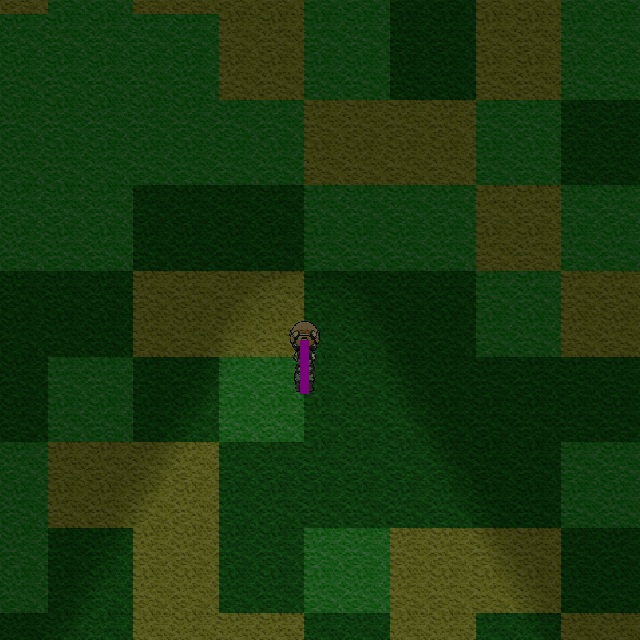
変化して、maxIntensity で設定した値まで変化していきます。
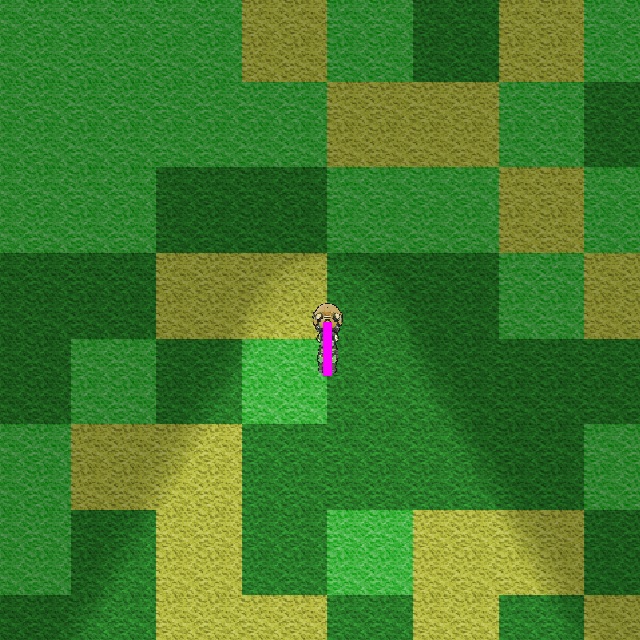
maxIntensity の値まで明るくなると、今度は minIntensity の値まで暗くなります。
まとめ
今回は、Unityの[Global Light 2D]の光量を C#スクリプトで編集して、昼と夜をシーンに再現する場合の手順について書きました。
C# スクリプトでライトの光量を徐々に明るくしたり、暗くすることで昼間と夜の経過を再現できます。
Unity で時間の経過で、昼と夜を再現したい人の参考になれば幸いです。
スポンサーリンク
最後までご覧いただき、ありがとうございます。